
Facebook User Administration
How Facebook business logins work
Many companies have a “login” for their companies’ Facebook page – or so they think. This is not how Facebook approaches business logins. Facebook business pages DO NOT have logins. In fact, a normal user (a personal account) must be used to create and maintain a Facebook business page.
Surprisingly, some businesses do not realize that their Facebook page is not a business page at all and is in fact a personal page. Facebook does not allow businesses to have personal user pages as it is against their terms and conditions. There are many benefits to a business to have a true business page – but that’s another article. The important part for this article is that your business page is, in fact, a business page.
Assuming you indeed have a business page, you have to access it by logging into a personal Facebook account. Personal accounts require a real, verified email address. Some businesses create an email and personal login to use for Facebook which they then use to create a business page. This is flawed because the user information is usually shared and if one person leaves the company, you need to change login credentials on both the Facebook account and the email account used to set it up (because the email account can be used if the password is forgotten). If the information is not shared, and only one person has access – what happens if that person leaves the company or “gets hit by the bus”.
For these reasons, it is important to have anyone working on the Facebook business page added as a user, using their personal Facebook account.
Logging in to your Facebook business page
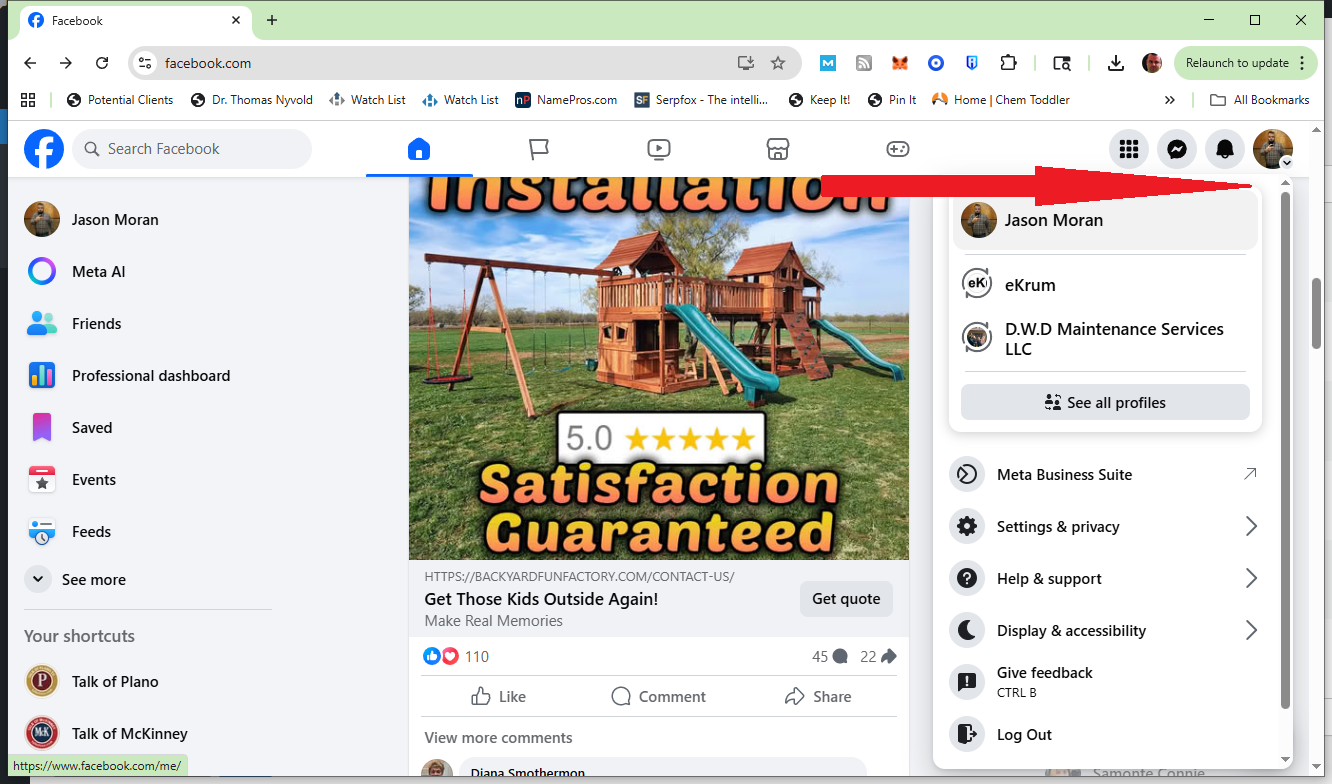
First login to your personal Facebook account. In the top right hand corner there is a down arrow. Click on that and you can switch from using Facebook as yourself to using it as the business. In the example below, there are several businesses the personal user can switch between. It is important to ensure that the top bar shows the business name – otherwise you could be posting to your personal account, and vice versa. Many time people have accidentally been using Facebook as a business and sharing or liking personal posts which are not appropriate for the business. It is important that whoever uses the Facebook account is aware and is cognizant of who they are using and posting to Facebook as.
Checking who has access to your Facebook business page
It is important to know who the administrators, editors and users of your Facebook page are (as well as other social media properties). Often there is employee turnover or security issues and thus it is necessary for you to understand who has access to what on Facebook.
From the above screenshot I have switched from my personal account / login to the “eKrum” business page. Notice “eKrum” is now on top vs. “Jason Moran”.
After logging and switching over to your business account, click on the “Settings and Privacy” menu option.
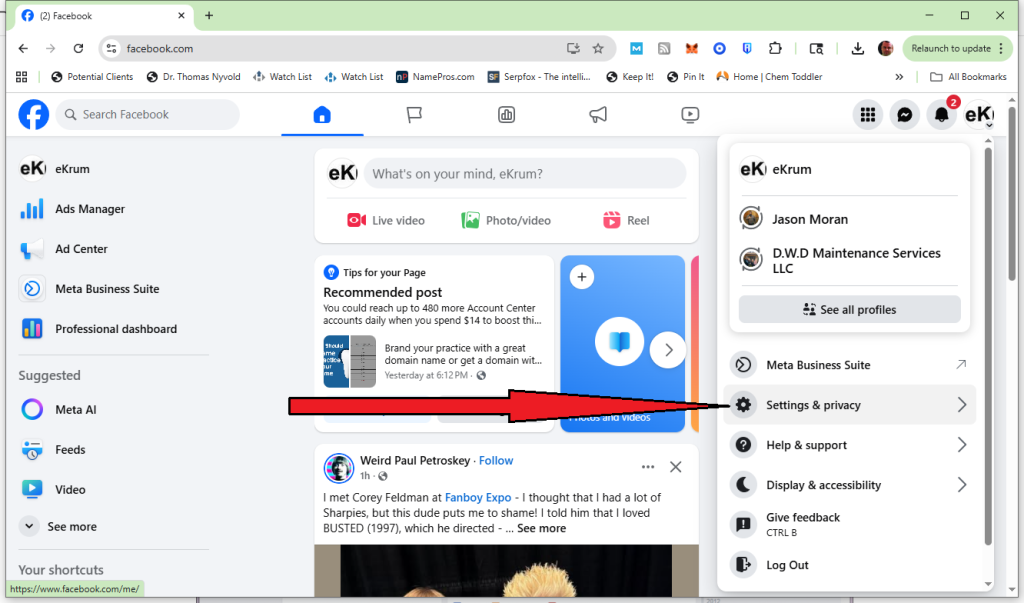
Clicking on “Settings and Privacy” will bring up a sub-menu as below – click on “Settings”…
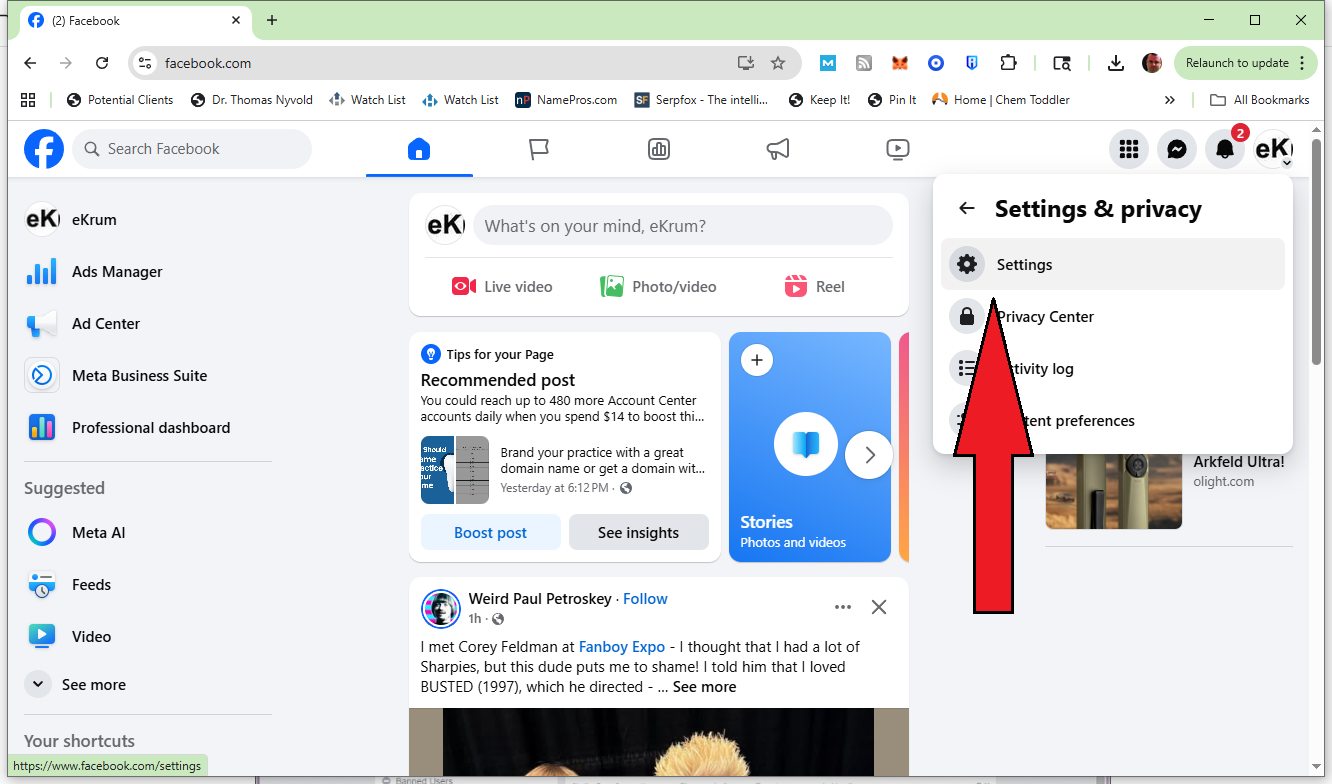
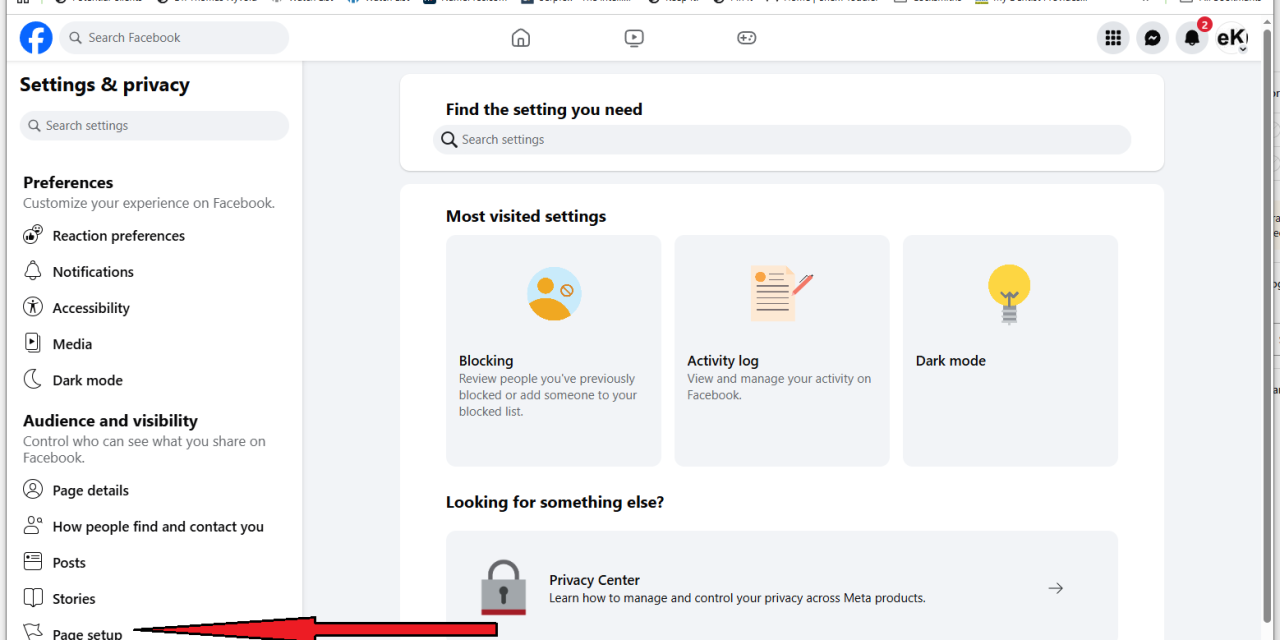
After clicking “Settings” your screen will refresh and there will be a menu on the left. About halfway down you should see “Page Setup”.
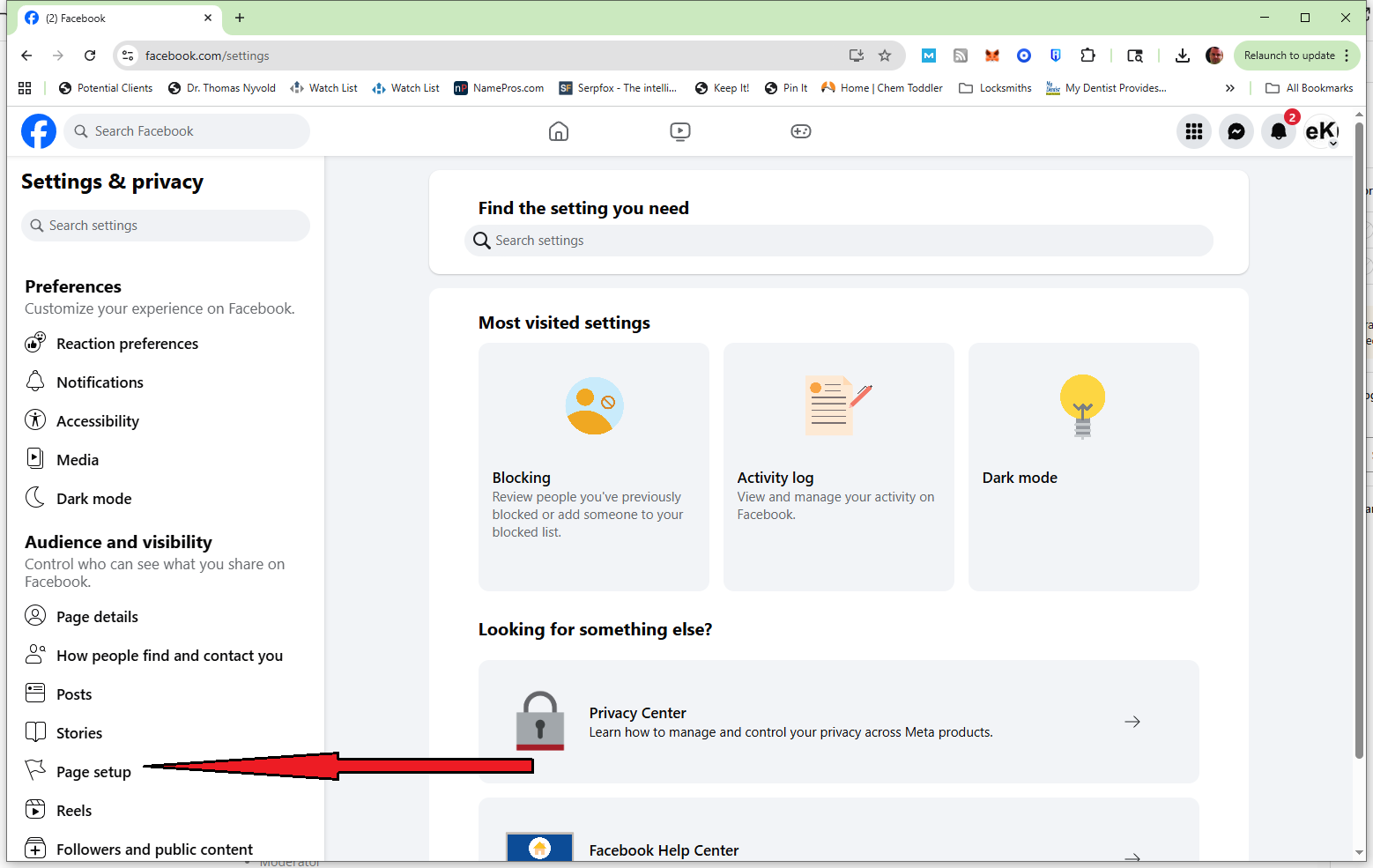
Click on “Page Setup” and it will take you to a new screen like below. Note “Page Access” – this is what you want to click to add a new user or administrator to Facebook…
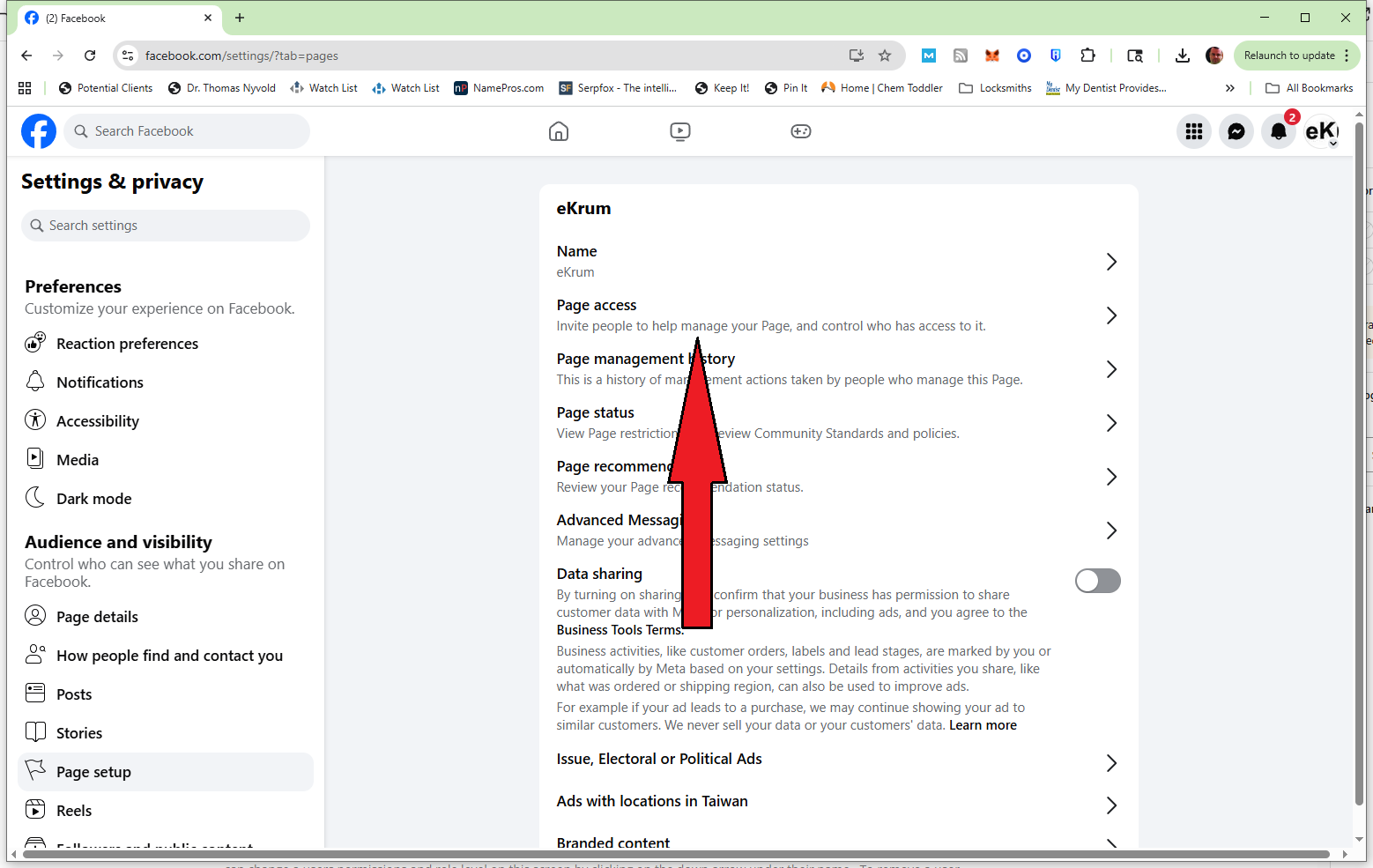
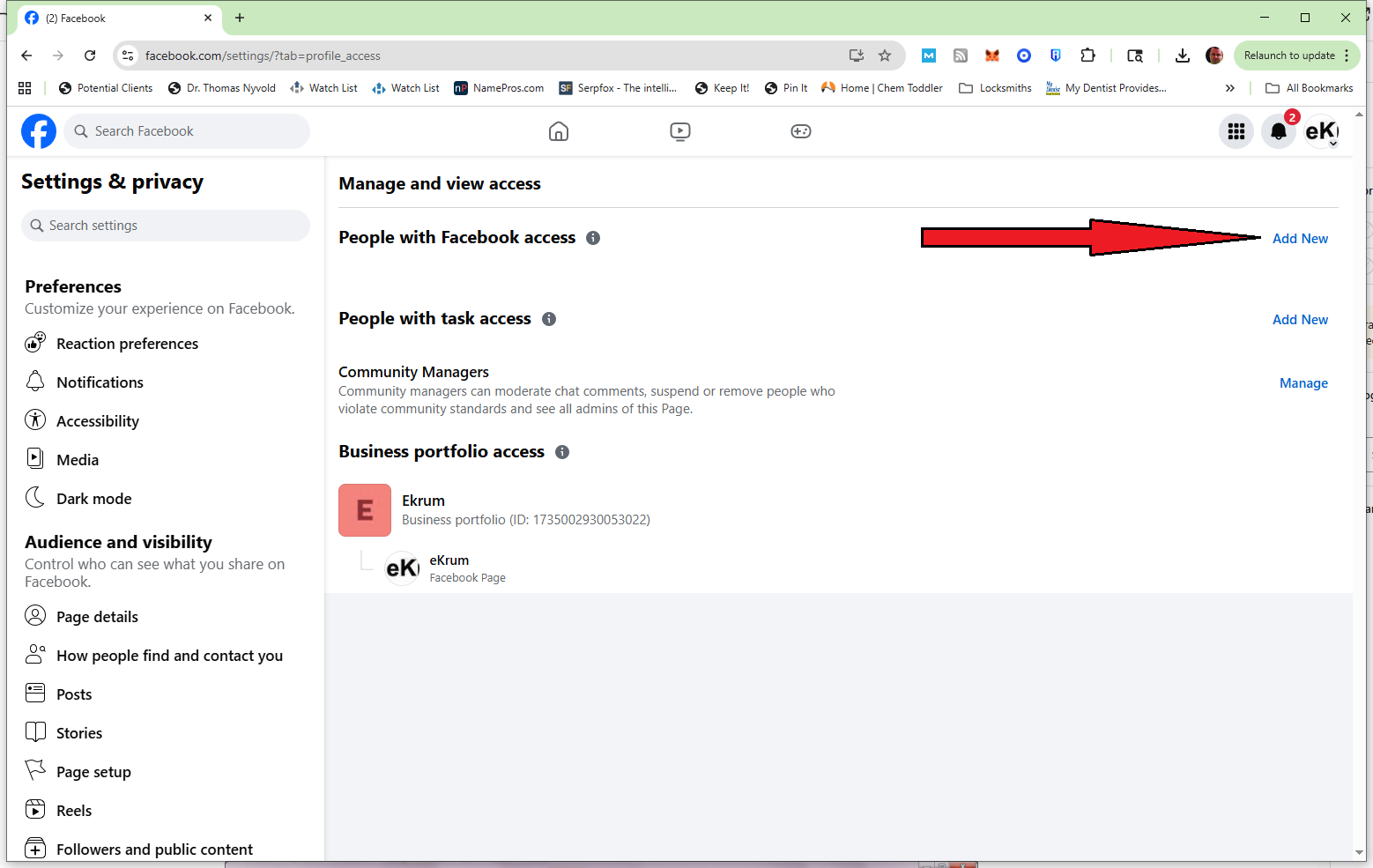
After clicking “Page Access” you will see a screen like below…
It shows current users with access and has “Add New” choices – you can Add a new user with access or you can add a person with task access (for instance, someone who does not own the business or can change the settings or information, they only have access to post content for instance). The small “i” in a circle gives Facebook’s definition of what the difference is. Facebook constantly changes the exact definitions so for that reason we recommend hovering over or clicking the “i” to understand the differences.
After clicking okay on the warnings a screen will pop up to enter the users email address or user name. Sometimes it is difficult and Facebook does not find the user. User experience shows that it is best when the user you want to add has already liked / followed the business page. This will make providing access to the user easier.
After choosing the right person for access, decide whether they will have full control or not and click next. You may have to reenter your PERSONAL password for security purposes.
The user will receive a notification they have been invited to help manage the page. The process will NOT be complete until they accept the invitation for management.
Congratulations, you have entered or edited your Facebook business page users.

